How do you scan a QR code on your phone? – iPhone & Android guide
QR codes are everywhere in the UK now — restaurant menus, event tickets, parking, deliveries, even joining Wi-Fi in cafes.
If you’re staring at a square barcode and thinking how do you scan a qr code on your phone, this guide walks through the quickest methods on iPhone and Android, plus what to do when it won’t scan.
What is a QR code and What Happens When You Scan One?
A QR code (Quick Response code) is a type of barcode that usually opens something on your phone — most often a website link, a digital ticket, a payment page, or a Wi-Fi join prompt.

What are the Common UK Uses you’ll Recognise?
You’ll commonly see QR codes on:
-
menus and posters in shops and cafés
-
train/event tickets and check-ins
-
parcels, returns, and customer service pages
-
Wi-Fi sharing at home or at work
How Do You Scan a QR Code on Your Phone Using the Camera (No App)?
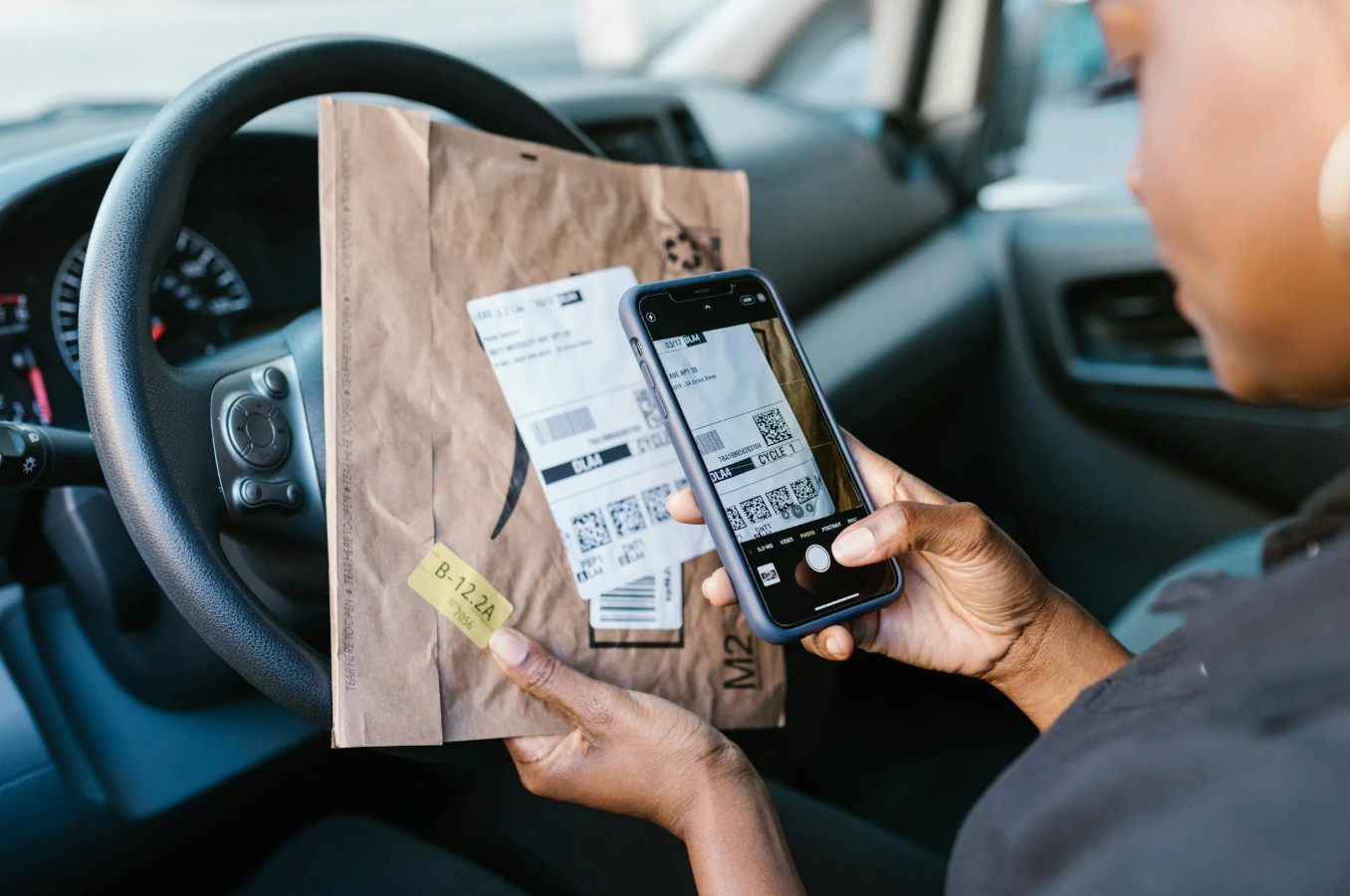
For most modern phones, the built-in Camera app is the easiest option.
-
Open the Camera app.
-
Point it at the QR code (keep it steady and well-lit).
-
Wait for a banner/notification to appear.
-
Tap the banner to open the link or action.
What To Do If the Link Banner Doesn’t Appear?
Try these quick changes:
-
Move slightly closer/further away so the camera can focus
-
Increase the light (or turn on a light source nearby)
-
Hold the phone steady for 1–2 seconds
-
Check the QR code isn’t blurred, damaged, or glossy-reflective
How Do You Scan a QR Code on an iPhone?
Most iPhones scan QR codes directly with the Camera app, and there’s also a faster built-in “Code Scanner” option.
How Do You Scan a QR Code with the iPhone Camera App Step-By-Step?
-
Open Camera.
-
Point at the QR code.
-
Tap the banner that appears at the top of the screen.
If it’s a Wi-Fi QR code, you’ll usually see a “Join network” style prompt instead of a web link.
How Do You Use Code Scanner from Control Centre? – The Faster Option
If you scan codes often (for example, checking tickets at events or accessing work systems), Code Scanner is quick because it’s designed specifically for QR codes.
-
Open Control Centre (swipe down from the top-right on Face ID iPhones; swipe up on older models).
-
Tap Code Scanner.
-
Point at the QR code and tap the result.
What Setting to Check If iPhone Won’t Scan QR Codes?
If your iPhone isn’t recognising any QR codes, check the camera’s QR scanning setting is enabled in iPhone settings (it’s a common “one switch” fix).
How Do You Scan a QR Code on Android?
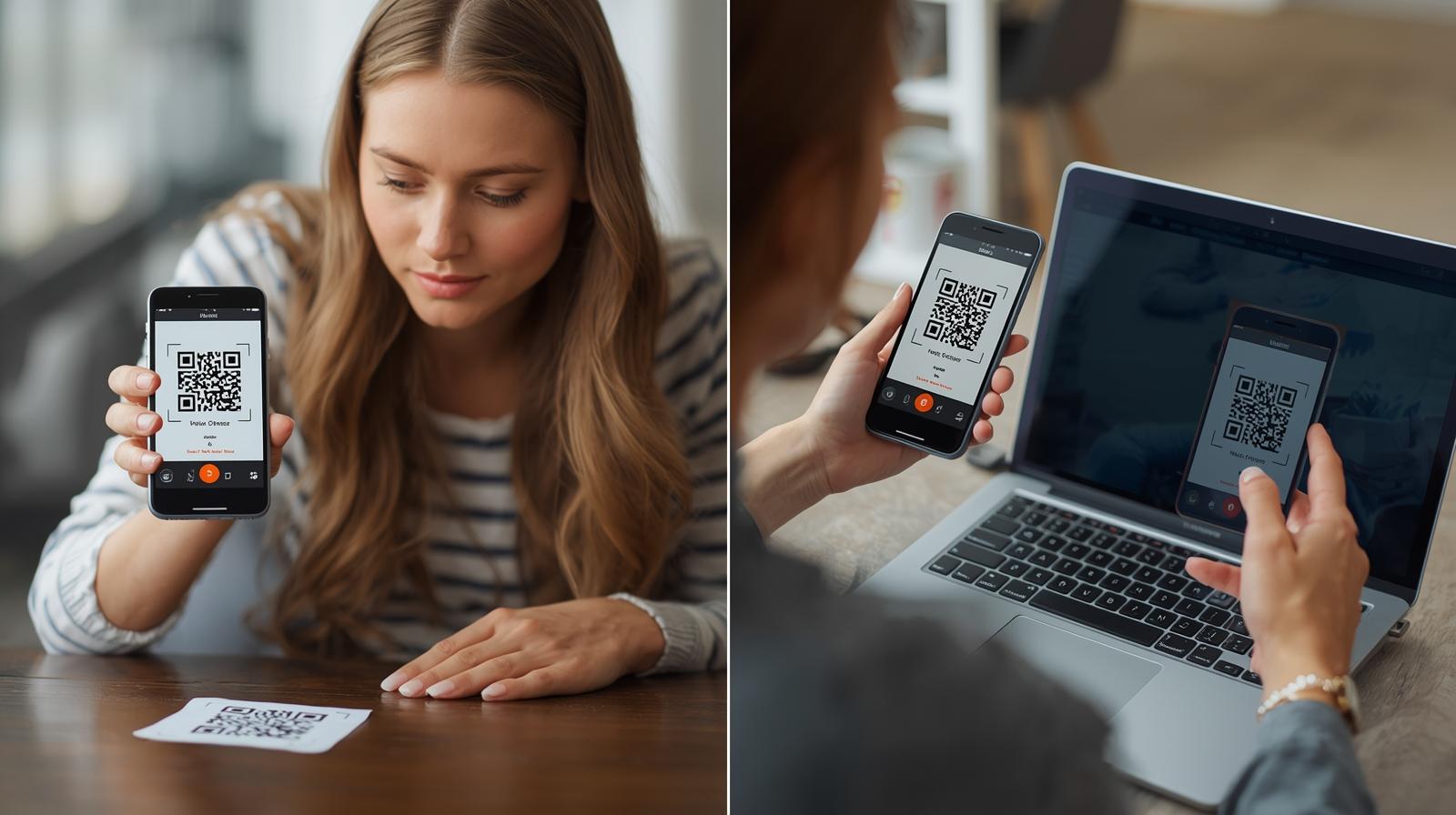
Android phones vary by brand, but most support QR scanning through the camera, a quick shortcut, or Google Lens.
How Do You Scan With Your Android Camera – What Most Phones Do By Default?
-
Open Camera.
-
Point at the QR code and pause briefly.
-
Tap the on-screen prompt to open it.
How Do You Use the QR Scanner in Quick Settings – If Your Phone Has It?
Many Android phones include a QR button in Quick Settings.
-
Swipe down from the top of the screen to open Quick Settings.
-
Look for a QR or Scan tile.
-
Tap it and scan the code.
How Do You Use Google Lens – When the Camera Won’t Recognise The Code?
Google Lens is especially useful when:
-
the camera won’t trigger the QR prompt
-
you’re scanning from an image or screenshot
-
the QR is on a screen and you want the phone to “read” it
Look for a Lens icon in the camera app, Google app, or Google Photos.
What Is Camera “QR mode” On Some Devices?
Some Android camera apps include a QR mode or built-in scanning toggle. If your phone isn’t scanning, it’s worth checking the camera settings for a QR/scan option.
How Do I Scan a QR Code from a Screenshot or Photo On My Phone?
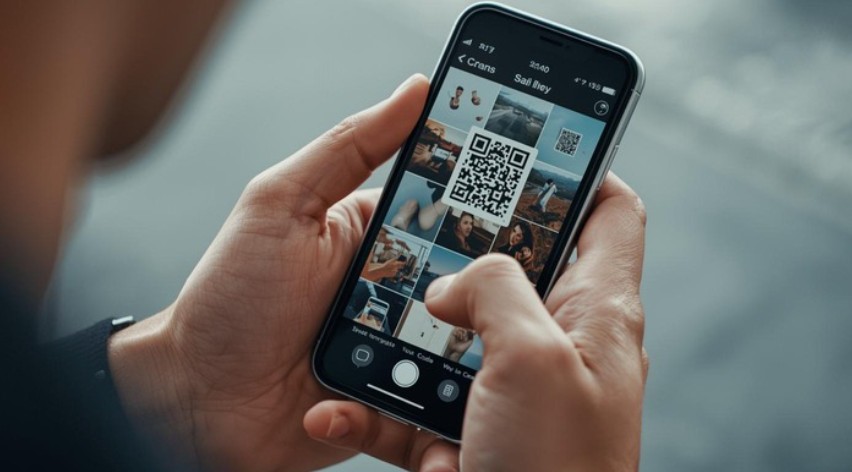
This is a very common situation: someone texts you a QR code, or you saved one from a website.
| What you’re scanning from | iPhone (typical method) | Android (typical method) | Best tip |
|---|---|---|---|
| Saved photo in your gallery | Open the image in Photos, tap the QR detection prompt | Open in Google Photos and use Lens | Zoom slightly if the code is small |
| Screenshot of a QR code | Open screenshot in Photos, use the QR prompt | Open screenshot in Google Photos, use Lens | Ensure the code isn’t cropped |
| QR code sent in a chat app | Save image then open in Photos | Long-press/open image then Lens | Increase screen brightness if it’s faint |
iPhone: How Do You Scan QR Codes from Photos (Saved Images)?
Open the photo and look for a QR detection prompt. If it’s not appearing, zoom in a little or rotate the phone to reduce glare/reflection.
Android: How Do You Scan QR Codes from Google Photos with Lens?
Open the image in Google Photos and tap Lens to detect the QR code and show the link/action.
Can You Scan a QR Code on Your Phone Screen With the Same Phone?
If the QR code is already on your screen (for example, a website showing a QR), you can’t point the camera at your own screen in the normal way — but there are workarounds.
The easiest workarounds
-
Take a screenshot of the QR code, then scan it from your photos using the methods above.
-
If you have another device (tablet, laptop, or a friend’s phone), display the QR there and scan normally.
Android Tip: When “Search-On-Screen” Tools Can Help?
Some Android phones have built-in on-screen search tools that can recognise content (including QR codes) without needing the camera pointed at another device. If supported on your phone, it can be faster than screenshotting.
How Do You Scan a Wi-Fi QR Code on Your Phone?
Wi-Fi QR codes are designed to save time — scan, tap, join.
What You Should See After Scanning?
Typically, your phone will show:
-
the network name (SSID)
-
a “Join” or “Connect” option
If the Wi-Fi QR Code Doesn’t Work?
Common reasons include:
-
the password has changed since the code was created
-
the code was generated for a different router/network name
-
the QR is damaged or printed too small to scan cleanly
Why Isn’t My Phone Scanning QR Codes? – Quick Fixes
If scanning is failing repeatedly, it’s usually one of these practical issues.
| Problem | Likely cause | Quick fix |
|---|---|---|
| No prompt appears at all | QR scanning turned off / camera not recognising | Try Quick Settings QR tile, Code Scanner, or Lens |
| It scans sometimes but not always | Lighting/glare/focus issues | Increase light, tilt slightly, clean the lens |
| It won’t scan from a screen | Screen glare or low contrast | Turn brightness up, zoom in, take a screenshot |
| Link opens but seems wrong | Code redirects or is misprinted | Don’t proceed; verify the source before continuing |
| QR is too small or blurry | Low-quality print or compression | Move closer, zoom, or ask for a clearer version |
| Camera access blocked | Permissions disabled | Enable camera permission for the app you’re using |
Is it Safe to Scan QR Codes on Your Phone?
In typical discussions, people often mention two worries: “Where will this link take me?” and “Could it be a scam?” The good news is scanning is usually safe — it’s the action you take next that matters.
Before tapping “Open”, a simple safety checklist helps:
-
Check the QR code looks like it’s placed by a legitimate business (not stuck over another code)
-
Preview the link text if your phone shows it, and watch for strange spellings
-
Avoid entering passwords or payment details unless you’re sure it’s the official site
-
If it feels urgent (“act now”, “account locked”), pause and verify another way
Do You Need a QR Code Scanner App?
Most people don’t.
When Built-in Tools are Enough?
For everyday use (menus, tickets, forms, Wi-Fi), the camera + built-in scanning is typically all you need.
When an App Might Help?
A dedicated app can be useful for specific needs like scan history, offline storage, bulk scanning for business workflows, or managing QR codes for staff/customer use. For personal use, built-in options are usually simpler and safer.
Conclusion: What Is The Quickest Way to Scan a QR Code on any Phone?
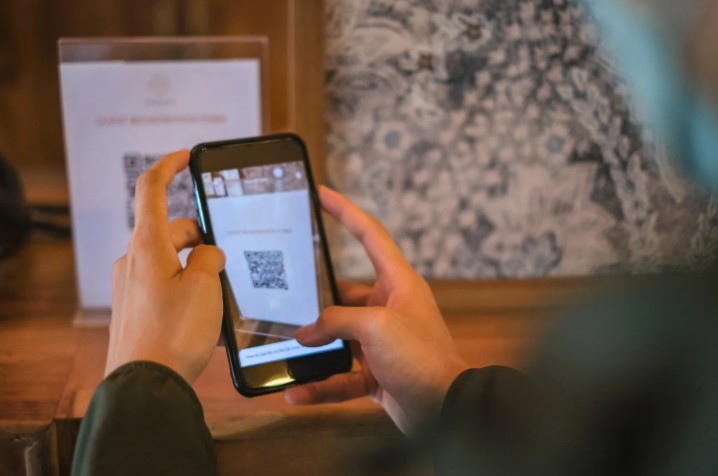
If you remember one thing, it’s this: how do you scan a qr code on your phone is usually answered by “open the camera, point, tap the banner.”
If that fails, the fastest next step is a built-in scanner shortcut (iPhone Code Scanner / Android Quick Settings QR) or Lens for scanning from photos.
Here’s what you can do next: try the camera method first, then use the photo/screenshot method if the QR is on your screen or sent in a message.
Author expertise note: This guide is written from a practical tech-support perspective, based on common issues seen when helping UK users and small teams troubleshoot camera settings, permissions, and QR scanning across iPhone and Android devices.
What are the FAQ about How Do You Scan a QR Code on Your Phone?
1. Do I need an app to scan a QR code on my phone?
Usually no — most modern iPhones and Android phones scan QR codes using the built-in camera or a built-in scanner shortcut.
2. Where is the QR scanner on iPhone?
Most often in the Camera app (banner prompt) or via Code Scanner in Control Centre.
3. Where is the QR scanner on Android?
Commonly in the Camera app, Quick Settings (if available), or via Google Lens (especially for photos/screenshots).
4. Why won’t my phone scan a QR code?
It’s often lighting, focus, glare, permissions, or a low-quality QR image/print. Try the troubleshooting table fixes above.
5. How do I scan a QR code from a photo or screenshot?
Open the image in Photos (iPhone) or Google Photos (Android) and use the built-in detection/Lens option.
6. Can I scan a QR code on my phone screen with the same phone?
Yes — the simplest method is to screenshot it and scan from your photos, or use an on-screen recognition tool if your Android device supports it.